Jose Jimenez
- Ph.D., Massachusetts Institute of Technology, 1999
Research Interests
Aerosols are small particles suspended in air, with lifetimes of 1-2 weeks in the atmosphere. They have major effects on climate, human health, visibility, crops, and ecosystems. A large portion is composed of organic compounds. Important sources of these organic aerosols (OA) include anthropogenic pollution (cars, trucks, volatile chemical products), biogenic compounds (plants, soils), and biomass burning (agricultural and wild fires). Gas-phase chemistry followed by gas-to-particle conversion produces secondary OA (SOA) and inorganic species. The amount, properties, and evolution of aerosols from these sources are poorly characterized, and our group combines field, laboratory, modeling, and instrument development research to better understand them.
Current Research
We recently participated in two collaborative aircraft field missions studying the chemistry of the wintertime NE United States (NSF WINTER) and springtime Korean Peninsula (NASA KORUS-AQ). The goals of the studies were to gain better understanding the sources, chemistry, transport, and losses of air pollutants of understudied urban wintertime conditions in the United States, and of an Asian megacity. We focused our research on quantifying the key sources and processes that lead to SOA production and aging.
During the WINTER campaign, we operated a High-Resolution Time-of-Flight Aerosol Mass Spectrometer (AMS) on the NSF/NCAR C-130 aircraft during daytime and nighttime over the NE United States. We showed that the OA fraction of aerosol was half that of summertime studies in that region, but almost as oxidized. OA was roughly half oxygenated (secondary) and half primary (POA). Biomass burning OA (likely from residential heating) was ubiquitous and accounted for one-third of OA. Large discrepancies with current computer models (GEOS-Chem versions) were uncovered that predict too little SOA and too much POA. A case study of urban outflow from New York City showed similar efficiency of SOA formation compared to summer, although slower due to lower oxidant levels in wintertime (Figure 1).
We participated in the KORUS campaign (making AMS measurements) onboard the NASA DC-8 aircraft over the Korean Peninsula. Our analysis showed that the efficiency of SOA production over Seoul was higher than for other megacities. Contrary to some previous speculation about the dominance of aerosol transport from China, we showed that production of SOA from locally-emitted precursors is a major source in the Seoul region. Transport modeling, strong correlations with short-lived secondary photochemical species, chemical box modeling, and results from an in situ oxidation flow reactor (OFR) were all used to discover and support these findings. An OFR was flown for the first time and provided unique constraints on the potential of air masses to form SOA by taking “snapshots” of that chemical potential periodically during flight. It showed that a factor of 4.5 increase in potential SOA over Seoul versus over the Yellow Sea (representative of background air masses advected into Seoul). See Figure 2.
Other ongoing research in our group includes: aircraft-based measurements of aerosol in the remote Atlantic and Pacific Ocean basins; modeling of the radical and SOA-forming chemistry in OFRs; chemically-speciated gas-particle partitioning on a wide range of aerosol seed compositions in the CU Environmental Chamber Facility; development and characterization of AMS and extractive electrospray (EESI) measurements; explicit chemistry modeling comparing chambers, OFRs and the atmosphere; developing improved parameterizations to simulate SOA formed from isoprene and terpenes; exploring the factors controlling SOA production among megacities; measurements of the sources, chemistry, and building interactions of organic compounds as well as cooking emissions in indoor environments; and wildfire and agricultural fire biomass burning emissions and chemical evolution from aircraft.
Research Categories
Atmosphere, ChemistryResearch Images
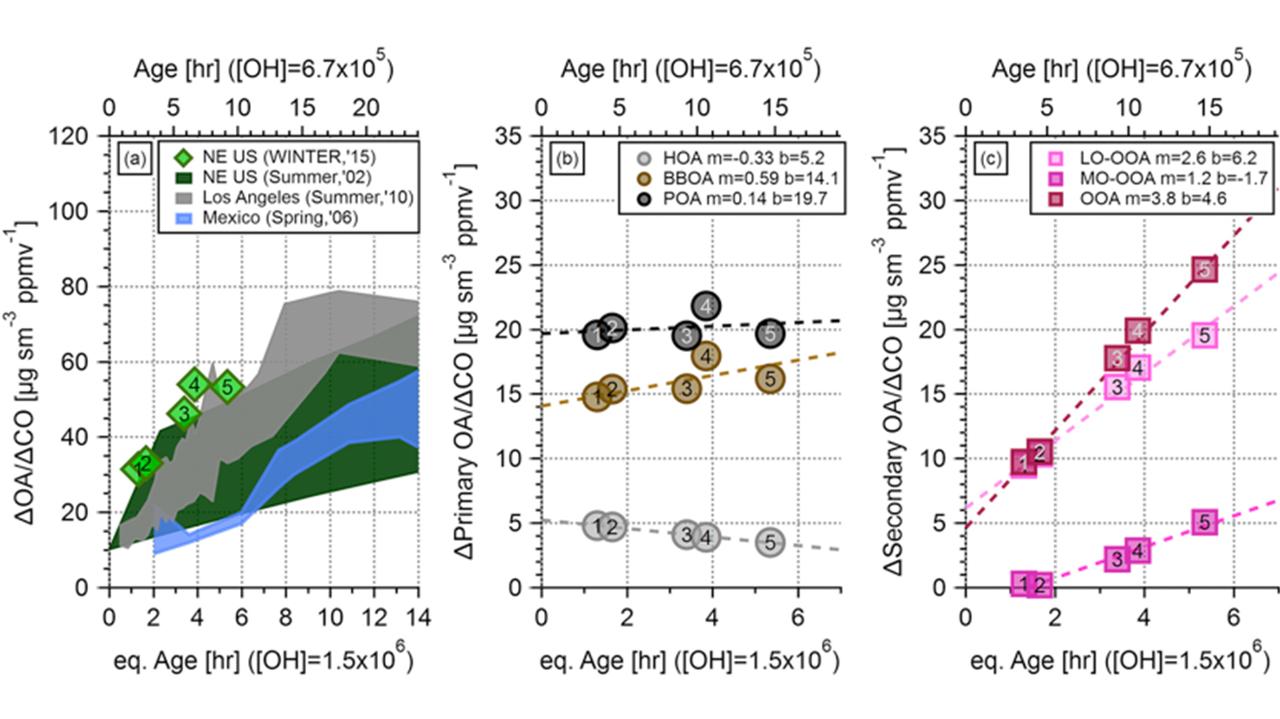
Aerosol evolution in the New York City
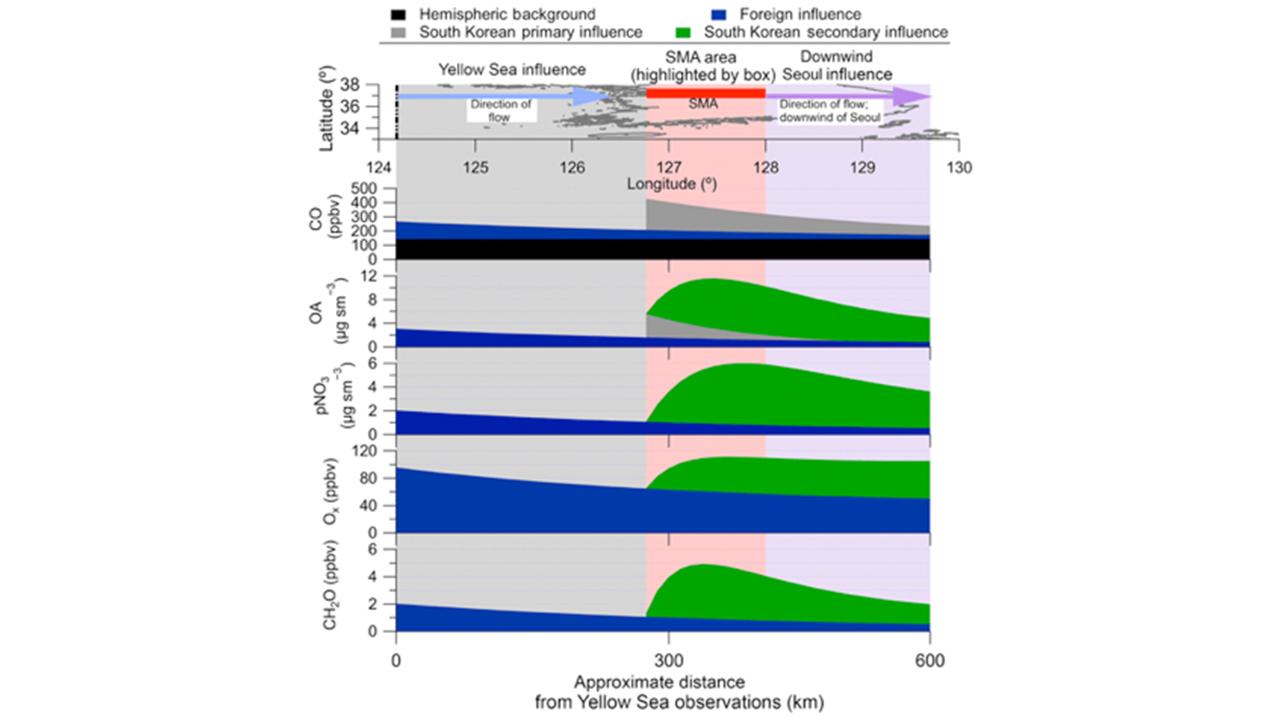
Transport of background air into Seoul
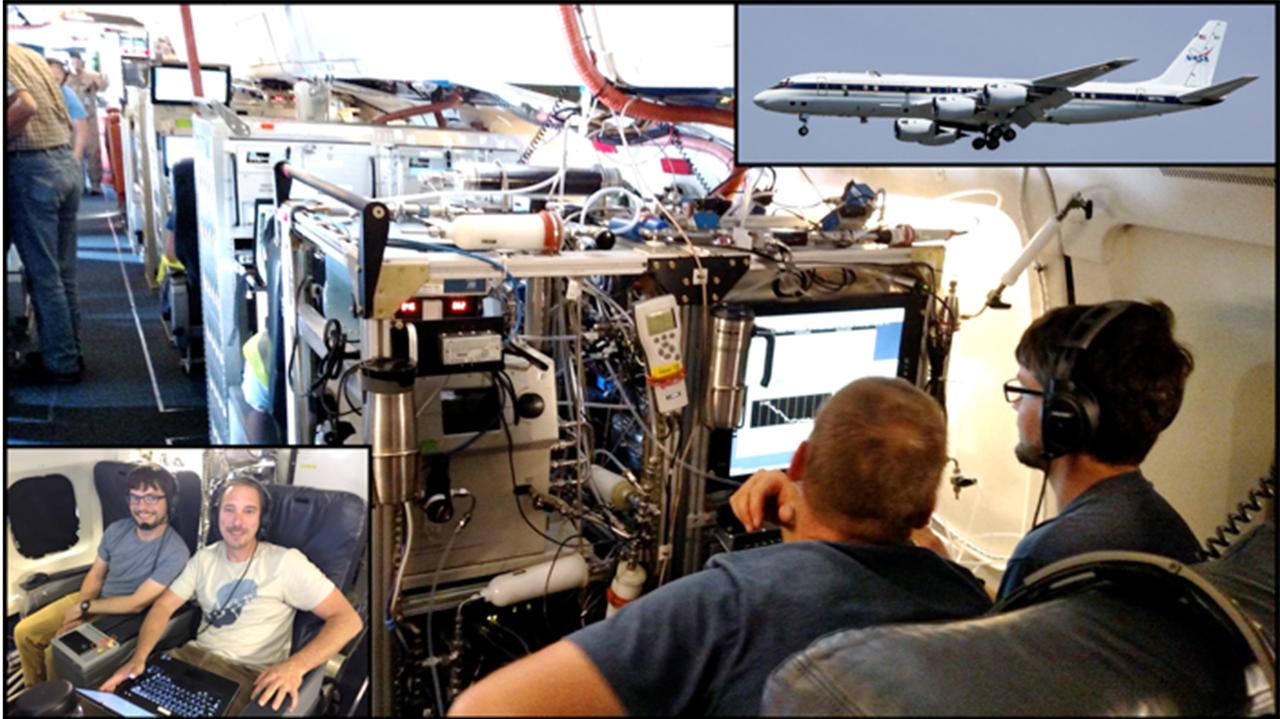
NASA DC8
Honors and Awards
to
Invalid date -Sponsors
-
Invalid dateP.I.(s)
About CECA
CECA connects and creates a supportive environment for graduate students and postdocs who come from various academic units to do research in CIRES.